
User Guide — ASAid WordPress Chat Bot
The Telegram bot @asaid_wordpress_bot lets you manage posts on your WordPress site directly from a Telegram chat — create, view, edit, and delete posts along with their SEO meta, without opening the WP Admin dashboard.
Setup has three parts: creating an Application Password credential in WordPress, registering with the bot, then connecting your site. Once connected, the reference section at the end of this document explains all bot commands and features.
Note: The bot’s messages and the connection form are in Indonesian. Bot messages, button labels, and error strings in this guide are quoted literally (with English glosses) so you can match them on screen.
Contents
- Prerequisites
- Part 1: Create an Application Password in WordPress
- Part 2: Register with the Telegram Bot
- Part 3: Connect Your WordPress Site
- Bot Commands
- Using the Bot
- Important Rules
- Troubleshooting
- Security & Privacy
- Need Help?
Prerequisites
Before you start, make sure all of the following are in place:
- An active Telegram account — this account becomes your identity in the bot.
- Administrator access to WP Admin of the site you want to connect.
- A WordPress account for the bot. We recommend creating a dedicated
user for the bot (e.g.
botoreditor) with the Editor role — those permissions are enough to create, edit, and delete posts, and to upload media. An administrator account is also accepted, but a dedicated account is safer and makes the change history easier to track.
Part 1: Create an Application Password in WordPress
An Application Password is a dedicated credential for third-party apps — the bot never needs your WordPress account’s main password.
Log in to your site’s WP Admin (usually
https://yourdomain.com/wp-admin; the example in this guide:https://paringininfo.com/gerbang.php).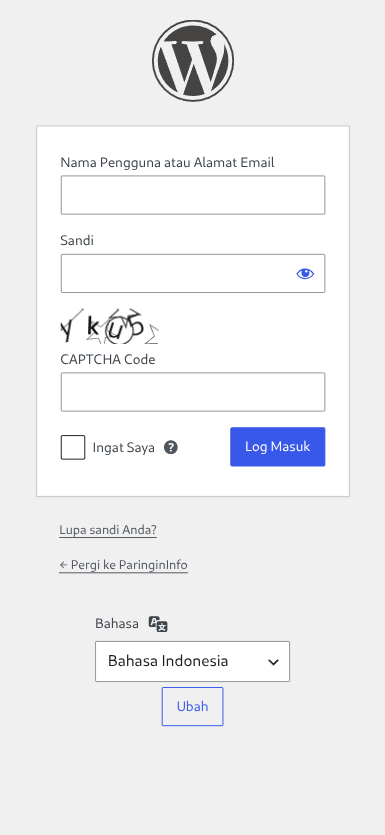
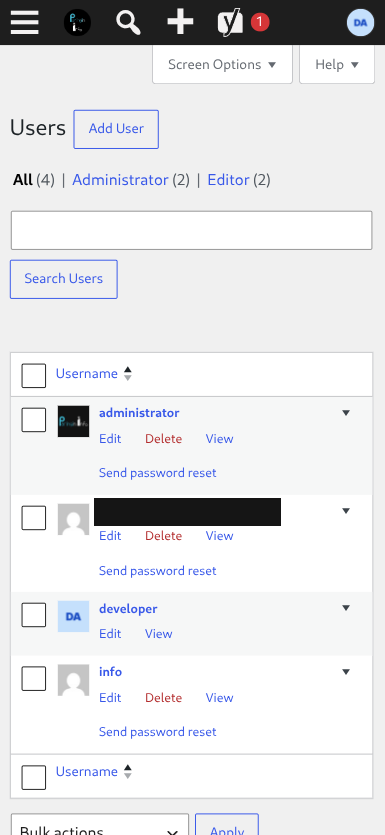
Open the Users menu. Choose the user the bot will use — a dedicated bot user with the Editor role is recommended (see Prerequisites), then click Edit.
Scroll down until you find the Application Passwords section. Enter
asaid_wordpress_botin New Application Password Name, then click Add Application Password.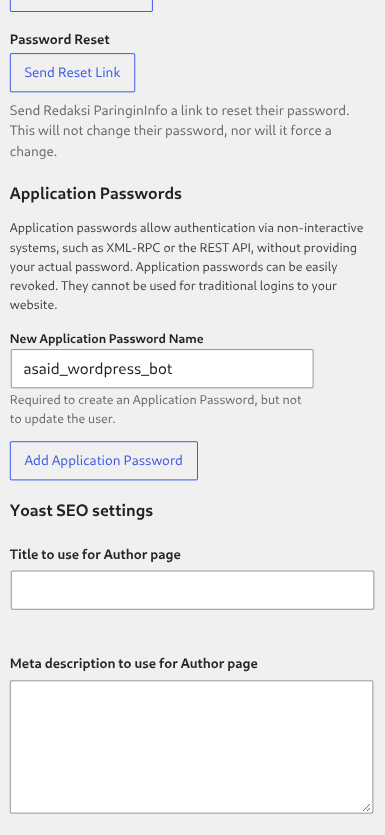
WordPress shows the new password — only once. Click Copy and store it somewhere safe for use in Part 3.
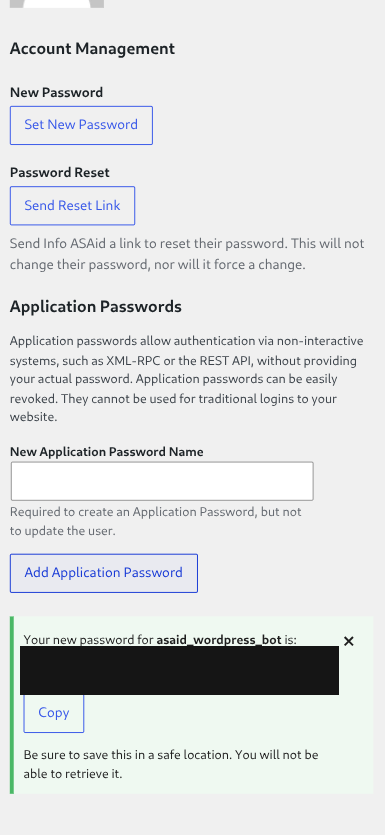
Note: The password is displayed in 6 groups of characters separated by spaces (e.g.
xxxx xxxx xxxx xxxx xxxx xxxx). The spaces may be copied along or removed — both are valid. If the Application Passwords section does not appear on the user page, make sure the site already uses HTTPS and no security plugin disables this feature. Official reference: WordPress Application Passwords.
Part 2: Register with the Telegram Bot
Open Telegram, search for @asaid_wordpress_bot or go directly to https://t.me/asaid_wordpress_bot. Press the Start Bot button or send the
/startcommand.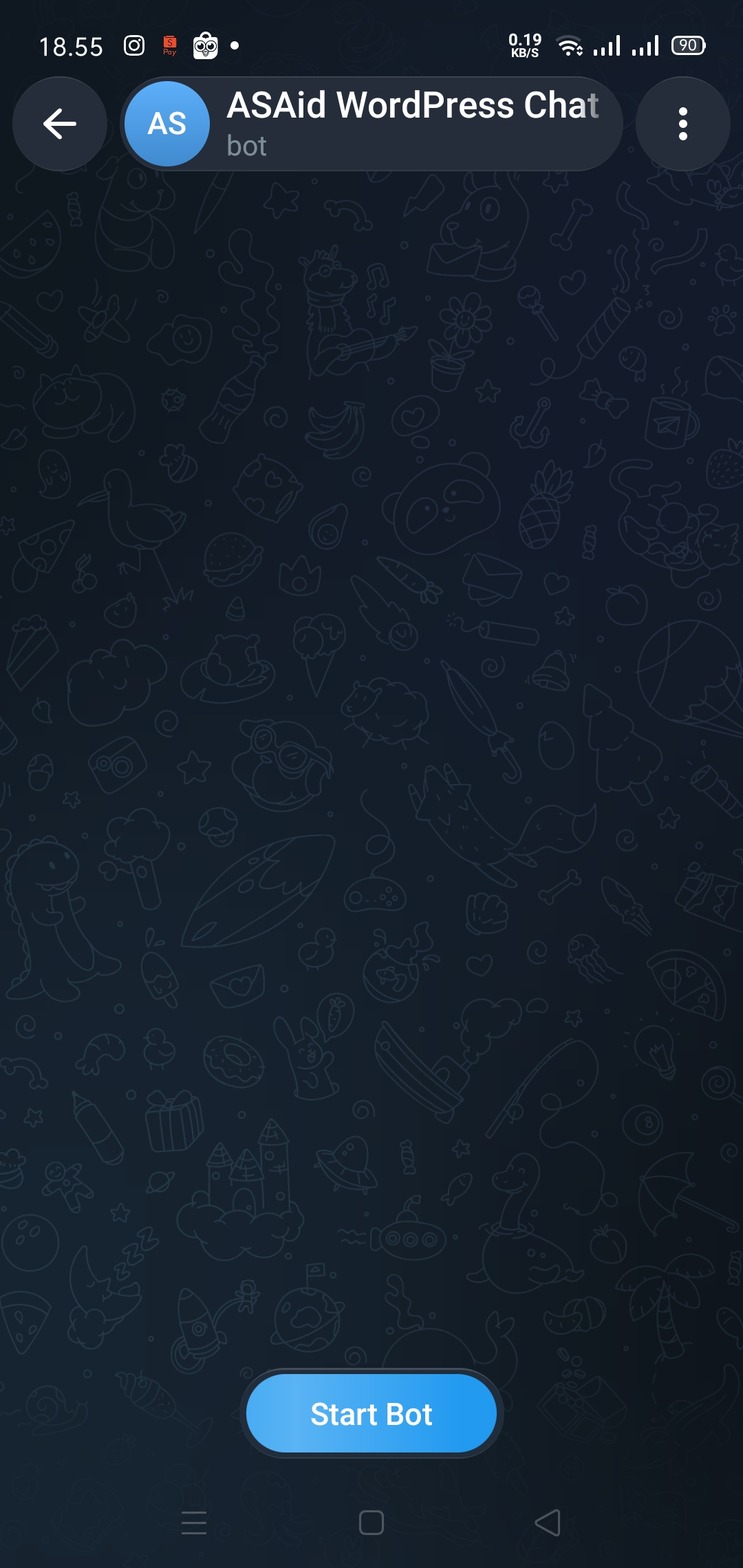
The bot replies with a welcome message and data-processing terms. By registering, you agree that:
- the gateway accesses your site’s posts & media;
- n8n processes this conversation;
- your site’s titles & content are sent to OpenRouter for SEO & classification;
- your WordPress credentials are NOT sent to the LLM;
- the domain you claim is informational for admin review.
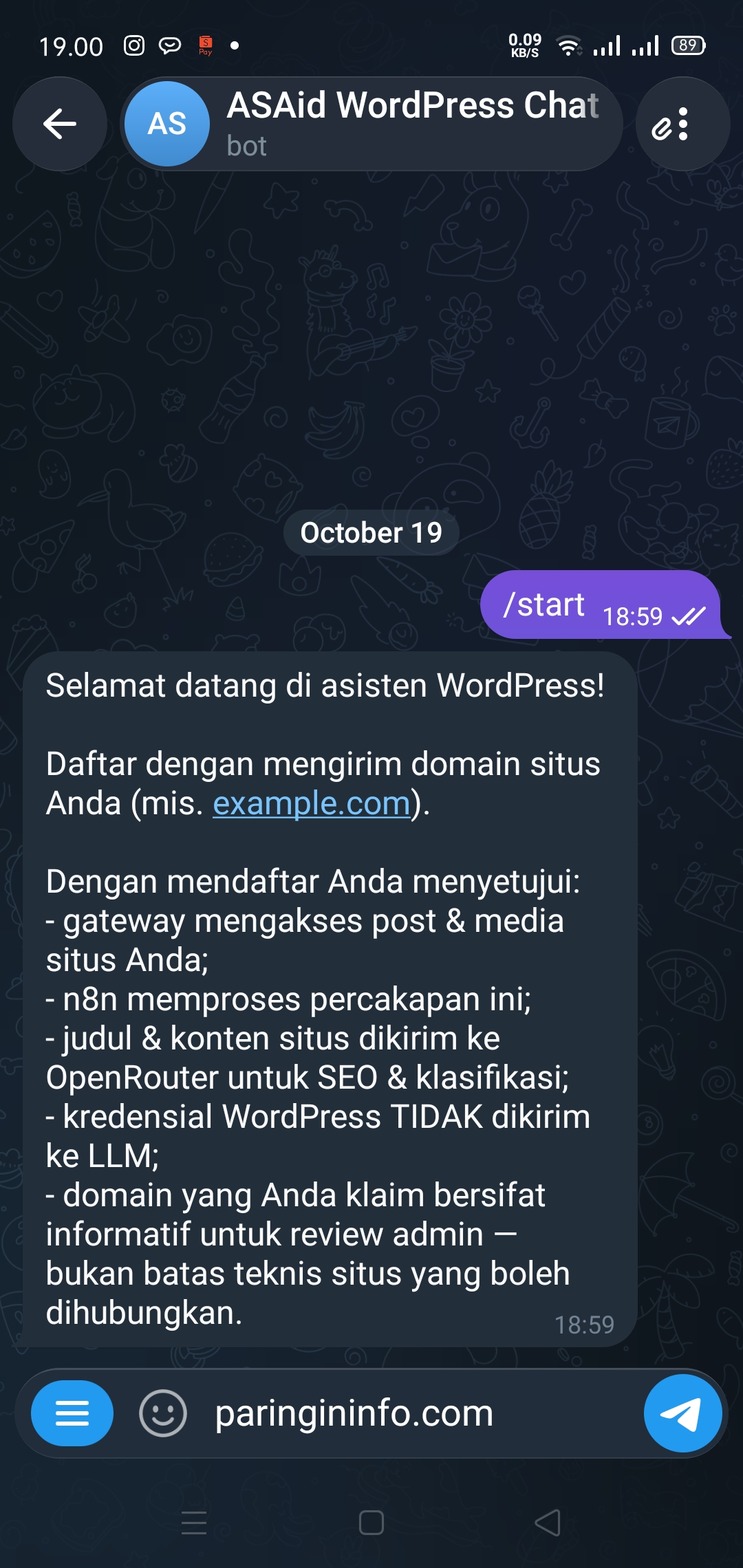
Send the domain of the site you manage, e.g.
paringininfo.com.The bot asks for a note for the admin. Send a short introduction or your reason for joining, e.g. "I’m from the paringininfo team and would like to use this bot." This note is optional — type
/skipto skip it.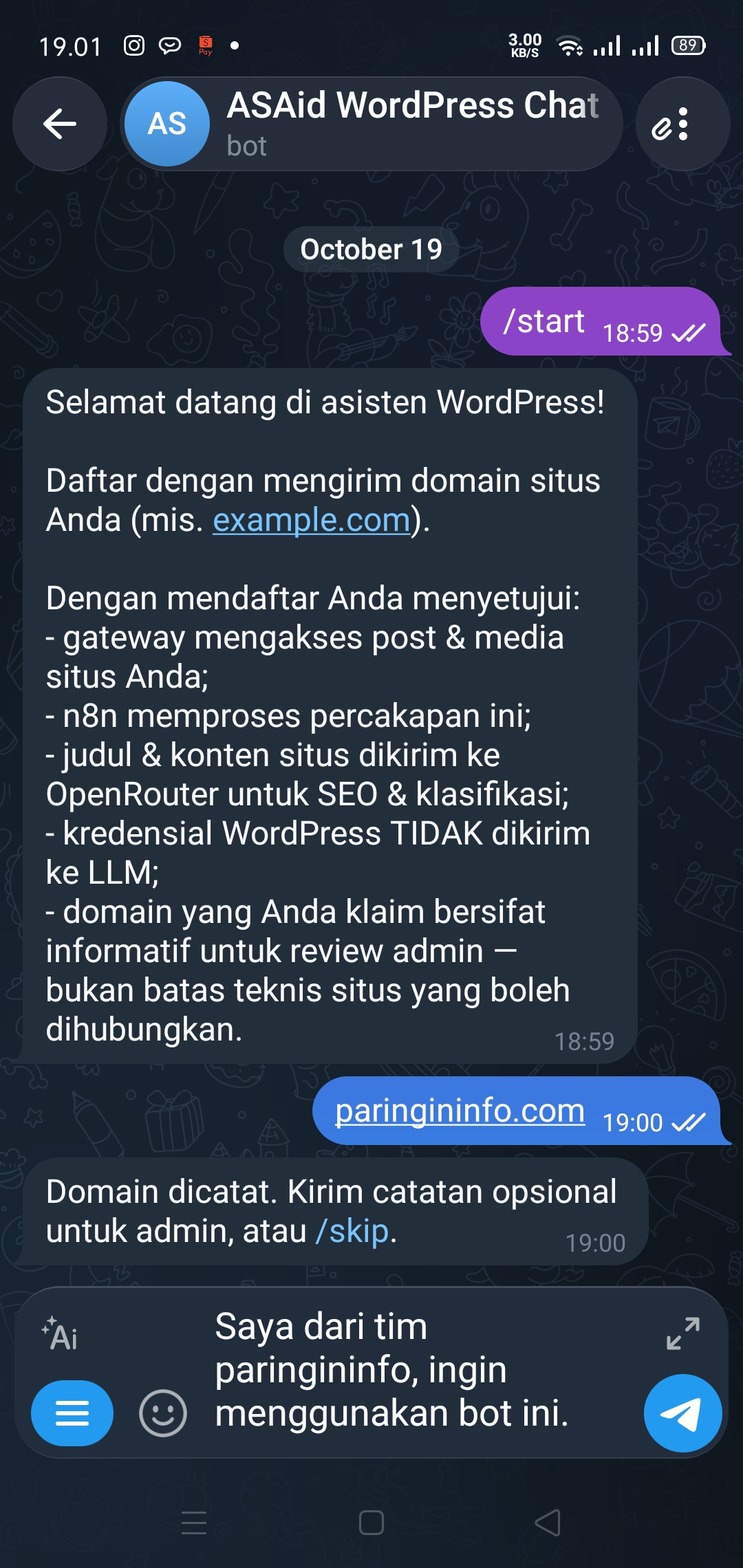
The bot confirms "Pengajuan terkirim — tunggu review admin" ("Application submitted — waiting for admin review"). Check your application status anytime with the
/statuscommand.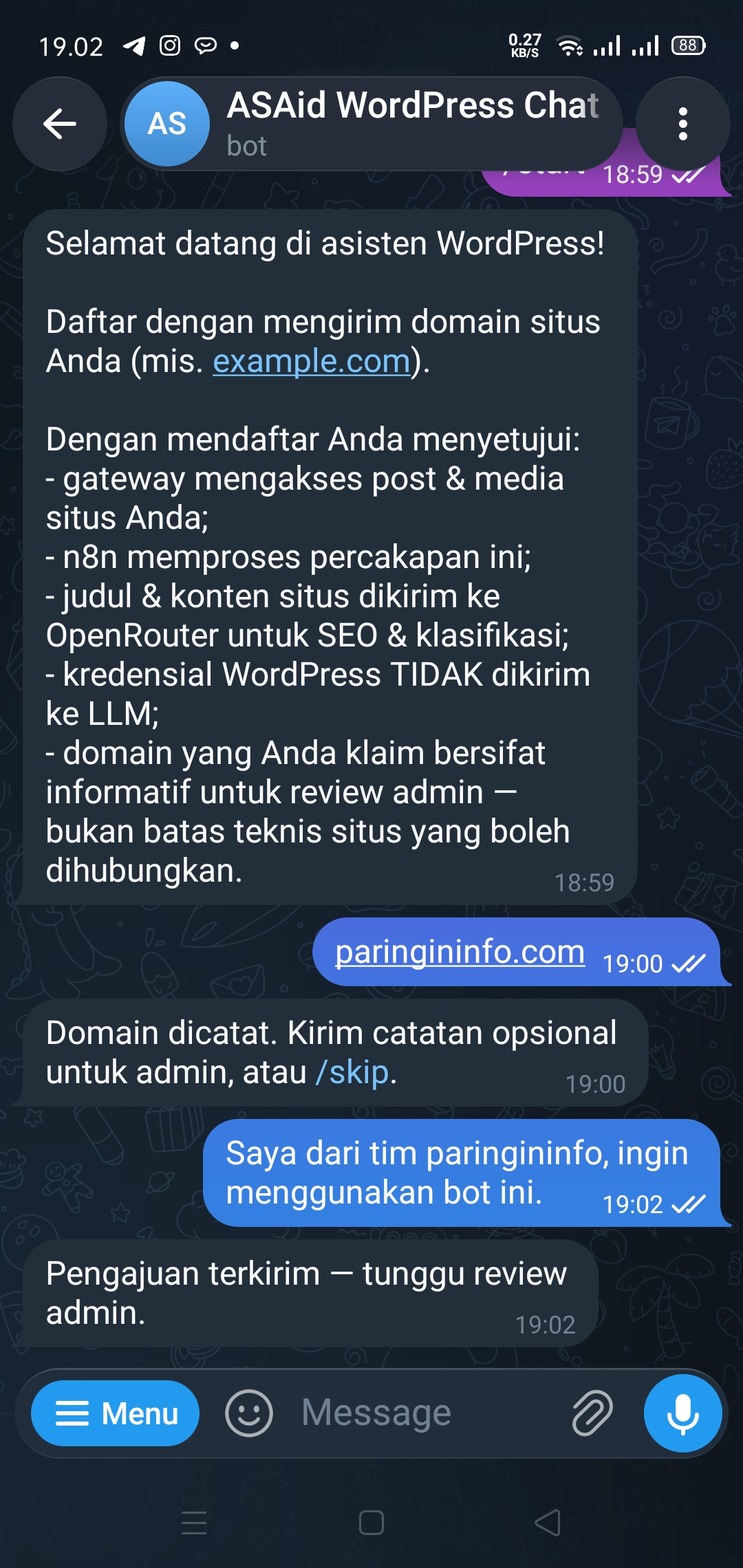
Note: If the application is rejected, the bot shows the reason — send
/startto submit a new application.
Part 3: Connect Your WordPress Site
After the admin approves, the bot sends "Pengajuan Anda disetujui!" ("Your application has been approved!"). Send the
/hubungkancommand.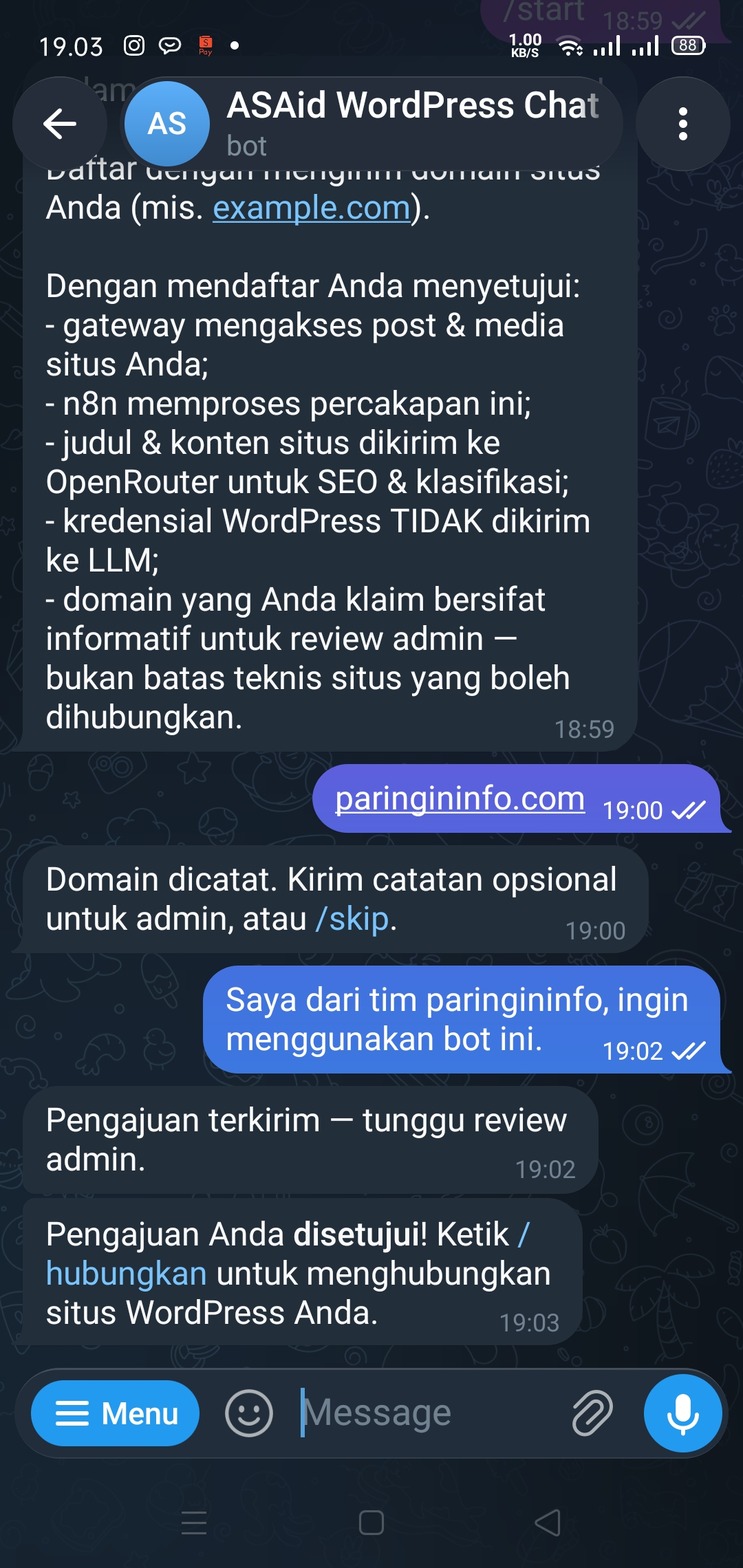
The bot sends a link to
connect.asaidgroup.com/connect#…for entering credentials. This link is valid for only 10 minutes and is single-use — open it in a browser right away.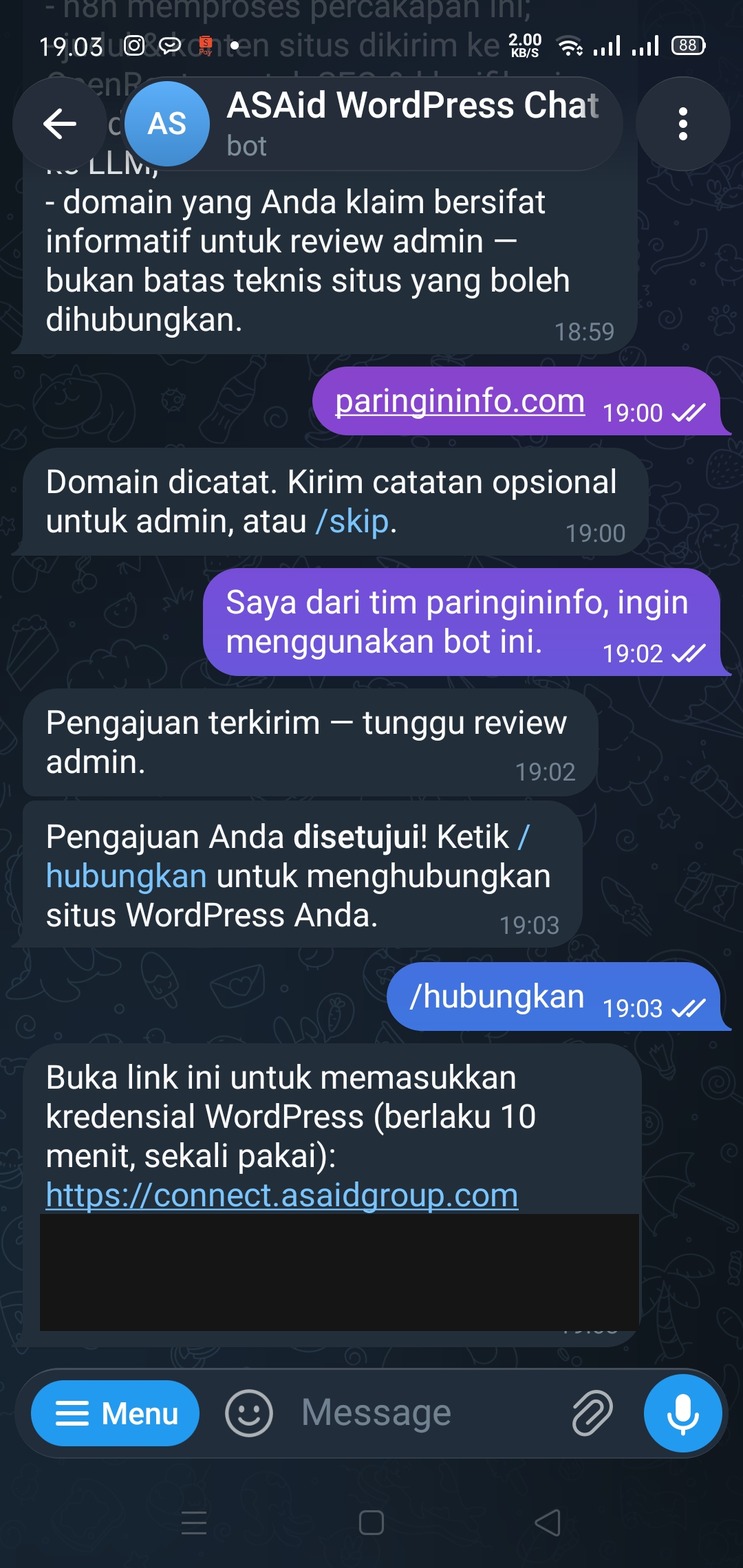
On the Hubungkan situs WordPress ("Connect your WordPress site") page, fill in:
Field Value URL situs (https) — site URL Your site’s full address, e.g. https://paringininfo.comUsername WordPress The WP account username from Part 1, e.g. infoApplication Password The password copied in step 4 Click Validasi koneksi ("Validate connection") and wait for the result.
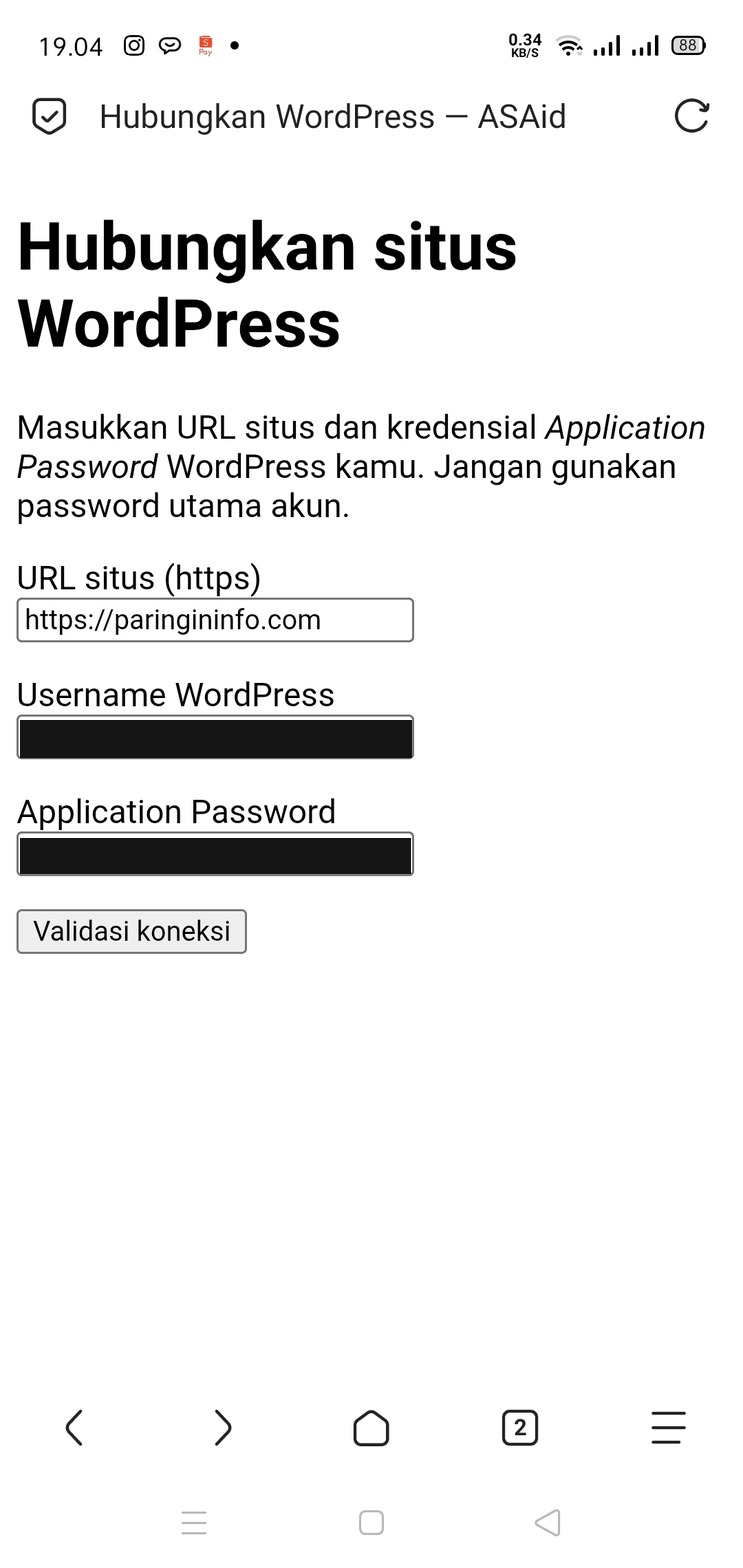
Note: Do not use the account’s main password — only an Application Password is accepted. If validation fails, fix the input and resubmit (maximum 5 attempts per session). If the session expires, request a new link with
/hubungkan.After validation succeeds, return to Telegram. The bot sends "Konfirmasi koneksi ke
<site>(WP:<username>)" ("Confirm connection to …") — check that the site and username are correct, then press Ini koneksi saya ("This is my connection").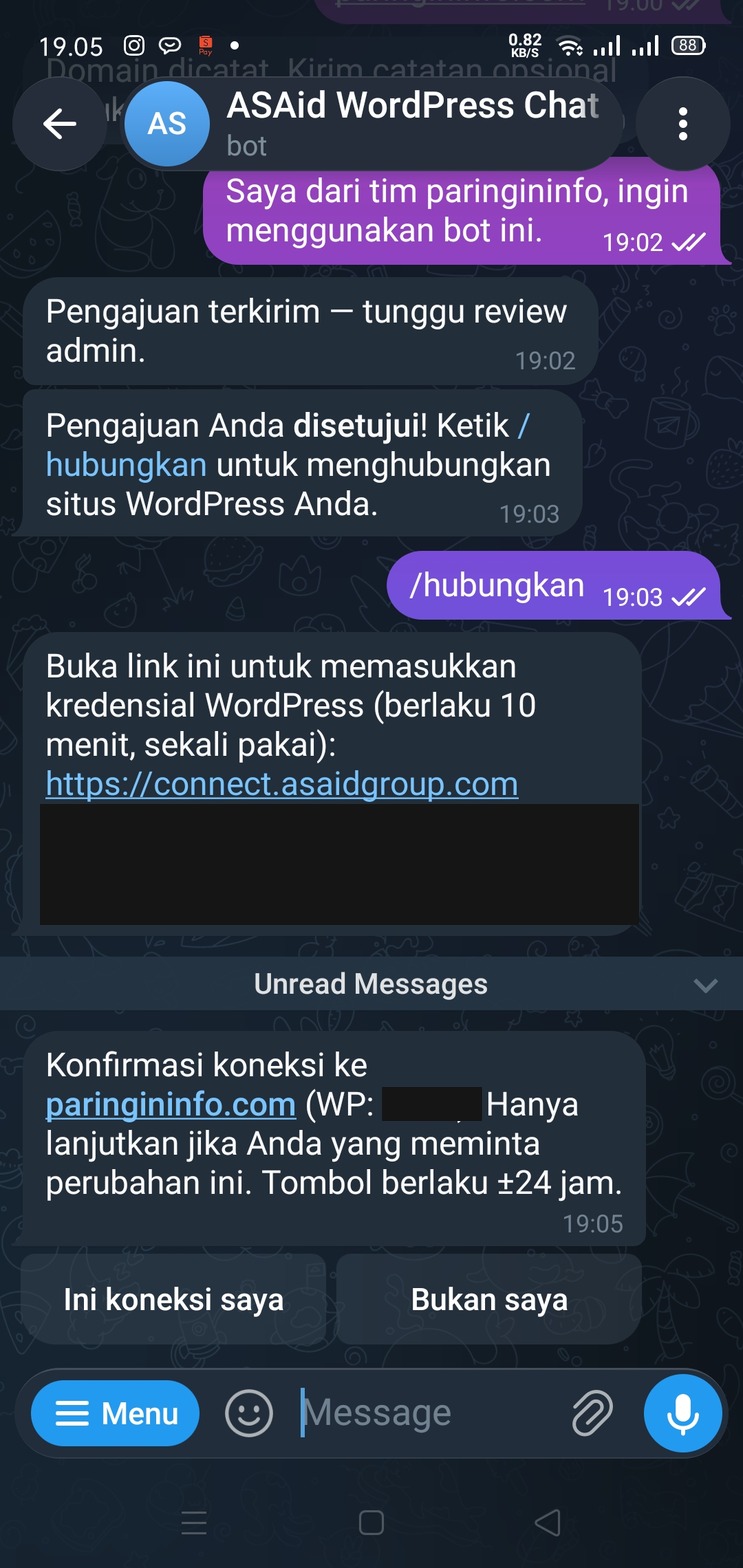
Important: This button is valid for about 24 hours and only works for your Telegram account — forwarding the link to someone else will not connect their account. If you did not request this connection, choose Bukan saya ("Not me").
The bot confirms "Koneksi aktif" ("Connection active") — your site is now connected and the bot is ready to use. Type
/startto see the command list.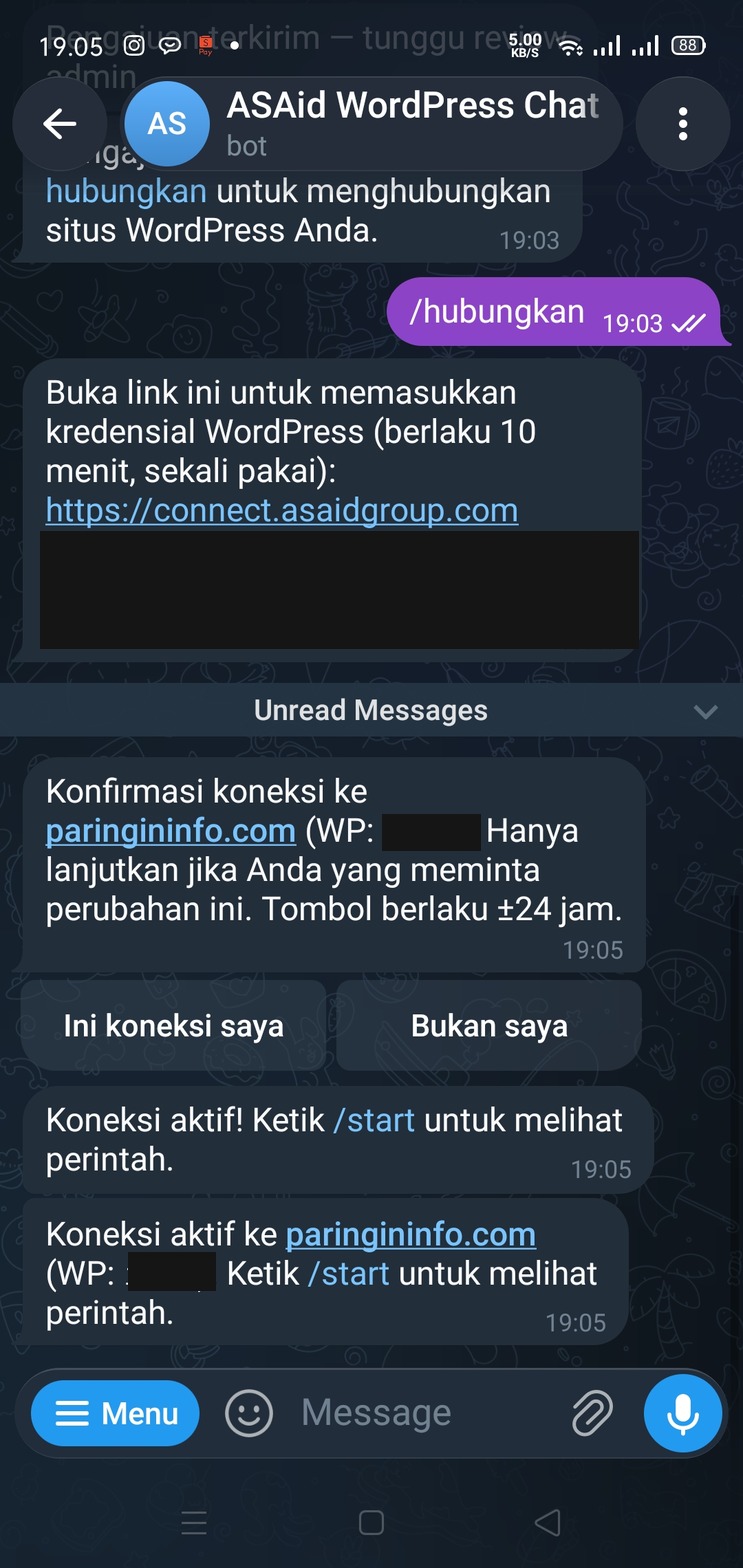
Bot Commands
Type /start or /bantuan anytime to show the command list matching your
account status.
| Command | Function | Available when |
|---|---|---|
/start |
Starts the bot; shows the command list | Always |
/bantuan |
Shows the command list | Always |
/status |
Shows your account and site-connection status | After /start |
/hubungkan |
Generates a connection-form link (also for switching connections) | After approval |
/tambah |
Creates a new post | Connection active |
/list or /daftar |
Shows the post list | Connection active |
/detail |
Opens the post list to view details | Connection active |
/edit |
Edits a post | Connection active |
/hapus |
Deletes a post | Connection active |
/batal |
Cancels the running action | Connection active |
/skip |
Skips the optional note | During onboarding (Part 2) |
Besides the commands above, you can write free text — the bot understands natural-language requests and runs the matching action (see Free-text requests).
Using the Bot
Adding a post (/tambah)
The bot walks you through a sequential wizard:
- Title — send the post title.
- Featured image — send it as a photo in Telegram (required; documents or file uploads are rejected).
- Post content — send the body text, multi-line is fine.
- Category — pick from the categories that already exist on your site.
- SEO meta — the bot automatically drafts a Yoast meta title & description; choose Terima ("Accept") to use it or Regenerate for a new draft.
- Confirmation — the bot shows a summary; choose Ya ("Yes") to publish the post, or Batal ("Cancel").
Listing & viewing post details (/list, /daftar, /detail)
- Shows the 5 latest posts per page with Next/Prev buttons for paging.
- Press the Detail button on a post to see all its data: title, content, category, featured image, date, link, and SEO meta.
Editing a post (/edit)
- Pick a post from the list (or mention its title in free text).
- Choose the field to change: Judul ("Title"), Featured Image, or Kategori ("Category") — you may change more than one field in a single session.
- Enter the new value for each field.
- If the title changed, the bot regenerates the SEO meta draft for review.
- The bot shows a before → after summary; confirm Ya to save.
Deleting a post (/hapus)
- Pick a post from the list (or mention its title in free text).
- The bot shows the details of the post to be deleted.
- Confirm Ya — the post is moved to the WordPress Trash (still recoverable from WP Admin → Posts → Trash).
Free-text requests
Write your request in everyday language, e.g.:
create a post titled Weekly Service Scheduledelete the post I made yesterdayshow the latest postsrename post X to Y
The bot classifies your intent and then runs the same flow as the commands — including always asking for confirmation before changing your site. If the request is outside post management, the bot replies that it can only help with adding, deleting, listing, viewing, and editing posts.
Canceling an action
Type /batal, Batal, or Cancel at any point to exit a running wizard.
Type /start to return to the beginning.
Important Rules
- Sessions expire after 5 minutes of inactivity. The bot notifies you when a session is auto-canceled — start again from the initial command.
- Every write action requires confirmation. The bot never creates, edits, or deletes a post without you pressing Ya — safe to experiment.
- Post content cannot be edited via the bot — only the title, featured image, and category. Content changes are still done in WP Admin.
- Categories can only be picked from existing ones on the site; the bot cannot create new categories.
- Old featured images are not deleted automatically — the old file stays in the Media Library when you replace an image.
- One Telegram account connects to one site. Connecting a new site via
/hubungkanreplaces the old connection after confirmation. - Posts created by the bot are published immediately on your site.
Troubleshooting
While filling in the connection form
| Error message | Cause | Solution |
|---|---|---|
Token undangan tidak ditemukan / Undangan tidak valid atau sudah dipakai ("invitation token not found" / "invalid or already-used invitation") |
Link expired (>10 minutes) or already used | Type /hubungkan again for a new link |
session is invalid or expired |
Browser session expired (10 minutes) | Type /hubungkan again and fill in the form promptly |
URL tidak valid ("invalid URL") |
URL is not valid HTTPS, or uses an unusual port/path/IP | Use the format https://yourdomain.com with nothing added |
situs tidak terjangkau ("site unreachable") |
Site is down, firewalled, or has TLS issues | Make sure the site is publicly accessible, then try again |
REST API nonaktif ("REST API disabled") |
WP REST API is disabled (security plugin/custom code) | Enable the REST API; make sure /wp-json/ is accessible |
kredensial ditolak ("credentials rejected") |
Wrong username or Application Password | Make sure the username is exact (not the display name) and the app password is copied in full; when in doubt, recreate it in WP Admin |
akun tidak punya capability ("account lacks capability") |
WP account role too low (not Editor/administrator) | Use an account with the Editor role or higher |
situs tidak mengekspos meta Yoast yang dibutuhkan ("site does not expose the required Yoast meta") |
Yoast SEO or the yoast-rest-meta mu-plugin is not installed |
Install both (see Prerequisites) then resubmit |
username sudah terdaftar pada situs ini ("username already registered on this site") |
That site + WP username combination is already used by another connection | Use a different WP username, or contact the ASAid admin |
terlalu banyak percobaan — coba lagi setelah 60 detik ("too many attempts — try again after 60 seconds") |
Exceeded the form submission limit | Wait 60 seconds, or request a new link via /hubungkan |
While using the bot
| Situation | Explanation | Action |
|---|---|---|
| The Ini koneksi saya button does not respond | Button expired (>24 hours) | Type /hubungkan to repeat the connection process |
Sesi sudah berakhir ("session has ended") / session expired |
No activity for >5 minutes mid-wizard | Start again from the initial command (/tambah, /edit, etc.) |
Pengajuan ditolak ("application rejected") |
Admin rejected your application (reason shown) | Fix the reason/note, then /start for a new application |
Akses Anda ditangguhkan ("your access has been suspended") |
Admin suspended your connection | Contact the ASAid admin |
Anda belum terdaftar ("you are not registered") |
Account has no application yet | Type /start to register |
| Bot does not reply at all | Messages from group chats/channels are ignored; or a temporary outage | Make sure you are in a private chat with the bot; try again; contact admin if it stays silent |
Security & Privacy
- Credentials go only through the HTTPS form. Username and Application
Password are entered at
connect.asaidgroup.com— the bot never asks for credentials via Telegram chat. - Connection links are private — single-use, valid for 10 minutes, and can only be completed by your Telegram account. Do not forward them to anyone.
- An Application Password can be revoked anytime without affecting your main password: WP Admin → Users → Edit user → Application Passwords → Revoke. Once revoked, the bot immediately loses access to the site.
- Do not share your Application Password with anyone, and never send it via chat — including to the bot.
Need Help?
- Type
/bantuanin the bot for the command list, or/statusto see your account and connection status. - For account issues (applications, suspension, switching connections), contact the ASAid Group Investment admin.